
English
GrowHub A22 Manual
Safety Information
Please read the following information carefully before using the product. Failure to follow these safety instructions may result in serious injury and will release Vivosun of all liability and void all product warranties.
-
Carefully review all instructions before installation and use.
-
Confirm that your power source matches the product’s electrical specifications.
-
Do not connect devices that exceed the product’s 120–240V AC, 1800W, 15A rating.
-
Check local code regulations for any additional safety requirements to ensure compliant installation.
-
Plug the product in securely and keep it out of reach of children.
-
If you are unsure about the installation process, consult a licensed professional. Improper installation may void the warranty.
-
Do not hardwire this product. Retrofitting may cause injury or damage and will void the warranty.
-
This product is intended for dry, indoor use only. Avoid using it in hazardous environments such as flammable, explosive, chemical-laden, or wet areas.
-
Avoid covering power cords with rugs or fabrics.
-
Do not insert fingers or foreign objects into any openings, as this can result in electric shock, fire, or damage. Do not block or tamper with the product during operation.
-
Discontinue use immediately if the product malfunctions, has been dropped, or shows any signs of damage.
-
Ensure the plug is fully inserted into the socket before use for added safety.
-
Do not disassemble the product, as this may cause damage or create safety hazards.
Key Features
Easy Growing
Automatically control all your grow devices for an easy growing experience.
SGS Compatible
Connect your favorite grow devices to the Vivosun app for unified control and remote monitoring.
Protected Growing
Act before it becomes a real problem. Receive notifications and alerts whenever parameters fall outside your desired range.
Wide Compatibility
A max load of 15A supports most grow devices.
Product Contents
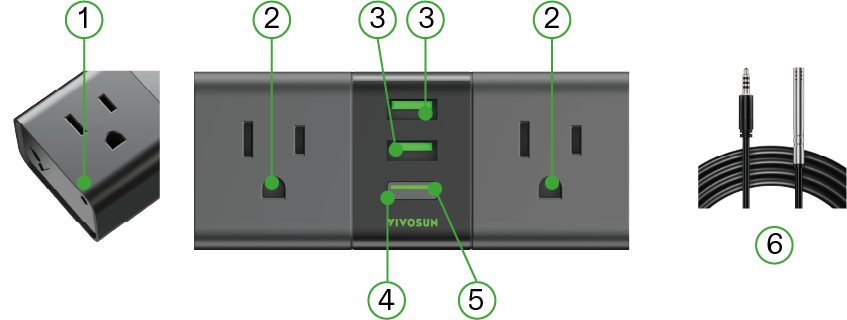
① |
Temperature & Humidity Interface |
④ |
Power Button |
② |
Power Socket |
⑤ |
LED Indicator |
③ |
USB Ports |
⑥ |
Temperature & Humidity Sensor Probe |
Specifications
Input |
100–120V ~ 60 Hz |
Rated Current |
15A MAX FOR GENERAL USE 10A MAX FOR HEATER |
MAX Total Output Power |
1800 W FOR RESISTIVE LOAD |
Working Temperature |
-20°C – 45°C (-4°F – 113°F) |
USB Port |
TOTAL 5V |
Connectivity |
IEEE 802.11 b/g/n, 2.4 GHz |

LED Indicator
LED Indicator |
Status |
Fast Flashing White |
Wi-Fi disconnected. |
Solid White |
Wi-Fi connected. Default Manual Mode on the Vivosun app. |
Solid Green |
Wi-Fi connected. Cycle/Auto/ Recipe Mode on the Vivosun app. |
Alternating White & Green |
Wi-Fi connected. Cycle/Auto/ Recipe Mode is changing to Manual Mode. |
Slow Flashing Green/White |
Offline |
Notice :
-
The LED indicator light will turn off after 5 seconds of operation to protect the plants. If you need to check the LED indicator status, briefly press the Power Button to activate the LED indicator.
-
When the GrowHub A22 is offline, the LED indicator will continuously flash green/white slowly until it reconnects to the network.
Installation & Connection
STEP 1
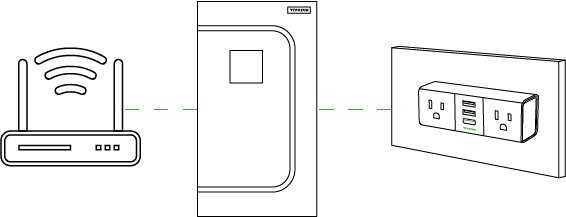
Plug the device into a mains outlet located outside the grow tent.
Notice :
-
Ensure the device is within 100 ft of the router.
-
Minimize obstructions (e.g. walls, windows) between the device and the router.
STEP 2
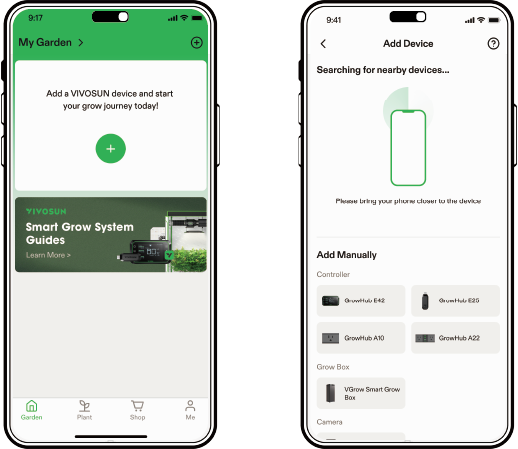
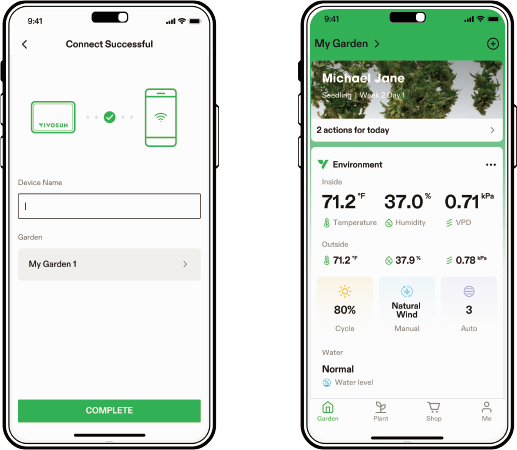
Connect GrowHub A22 to the Vivosun app
Step 2.1: Download the Vivosun app
Search "Vivosun" in the App Store or Google Play Store to download the Vivosun app.
Step 2.2: Add GrowHub A22
Tap '+' or  to add GrowHub A22. When connecting to the Vivosun app, the LED indicator will flash white.
*NOTE : * Make sure you have a 2.4G WiFi connection and that Bluetooth is enabled on your phone.
Step 2.3: Name Your Device
Once you’ve successfully connected your GrowHub, you can rename the device and start using it right away.
*NOTE : * You can either create a new Garden or add the GrowHub A22 to an existing one. It is fully compatible with the GrowHub Controllers E42, E42A, and E25.
All GrowHub Controllers in the same Garden will run the same recipe.
Operation
Local Function
| LOCAL FUNCTION | OPERATION | LED INDICATOR |
|---|---|---|
Turn On/Off the device |
Press the Power Button |
White (Wi-Fi disconnected or Manual Mode) |
Change Cycle/ Auto/Recipe Mode to Manual Mode |
Press and hold the Power Button for 3 seconds |
Alternating white & green when holding the button; Become solid white confirms a successful change to Manual Mode |
Restore to factory settings |
Press and hold the Power Button for 6 seconds |
Fast flashing white after successfully restoring to factory settings |
APP Control
LED Indicator |
Status |
Remote On/Off |
Turn On/Off the device on the Vivosun app |
Timer Setting/Cycle |
Turn On/Off the device at a set time |
Auto Mode |
Turn On/Off the device at a set temperature/humidity |
Recipe* (Must work with other devices in the same garden) |
Turn On/Off the device based on the stage/schedule/temperature/humidity |
Notice : Auto Mode requires a current temperature/humidity measurement. You can add GrowHub A22 to your garden to customize your own smart growing.
Usage Scenarios
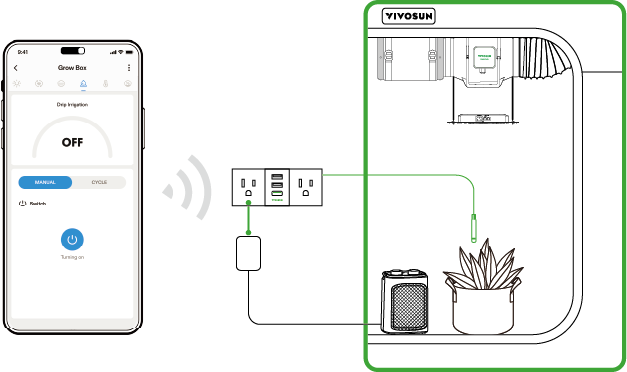
Scenario 1: Lighting Control
Connect the light inside the tent to the smart socket; control via the app.
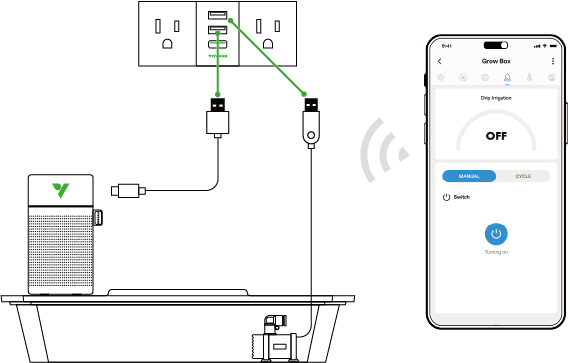
Scenario 2: Irrigation Control
Connect the drip irrigation system from the self-priming water basin to the adapter, then plug it into the smart socket; control via the app.
Warranty
VIVOSUN offers a 2-year limited warranty on this product purchased directly from us or our authorized dealers, beginning on the original date of purchase.
This warranty is provided in addition to, and does not affect, your statutory rights under applicable consumer protection laws in the country where the product was purchased.
For the full Warranty Policy, please visit: https://www.vivosun.com/help/warranty-policy.
Alternatively, you may contact customer service at support@vivosun.com / +1 888-505-8486.
Contents

We help you grow your best green.

We provide the highest quality.

We relentlessly pursue the future.

We make growing more enjoyable.

We support every grower.
Sign up and get 8% off your first order
©2026 Vivosun All Rights Reserved